> ## Documentation Index
> Fetch the complete documentation index at: https://docs.eirasync.app/llms.txt
> Use this file to discover all available pages before exploring further.
# Setup tutorial
> Step by step: connect EiraSync to Obsidian — no jargon required.
Connect Obsidian to EiraSync — in a few steps.
Copy your setup link from the dashboard, install the LiveSync plugin, paste the link — done. Follow each section in order.
## 1. Get your setup link
### In the EiraSync dashboard
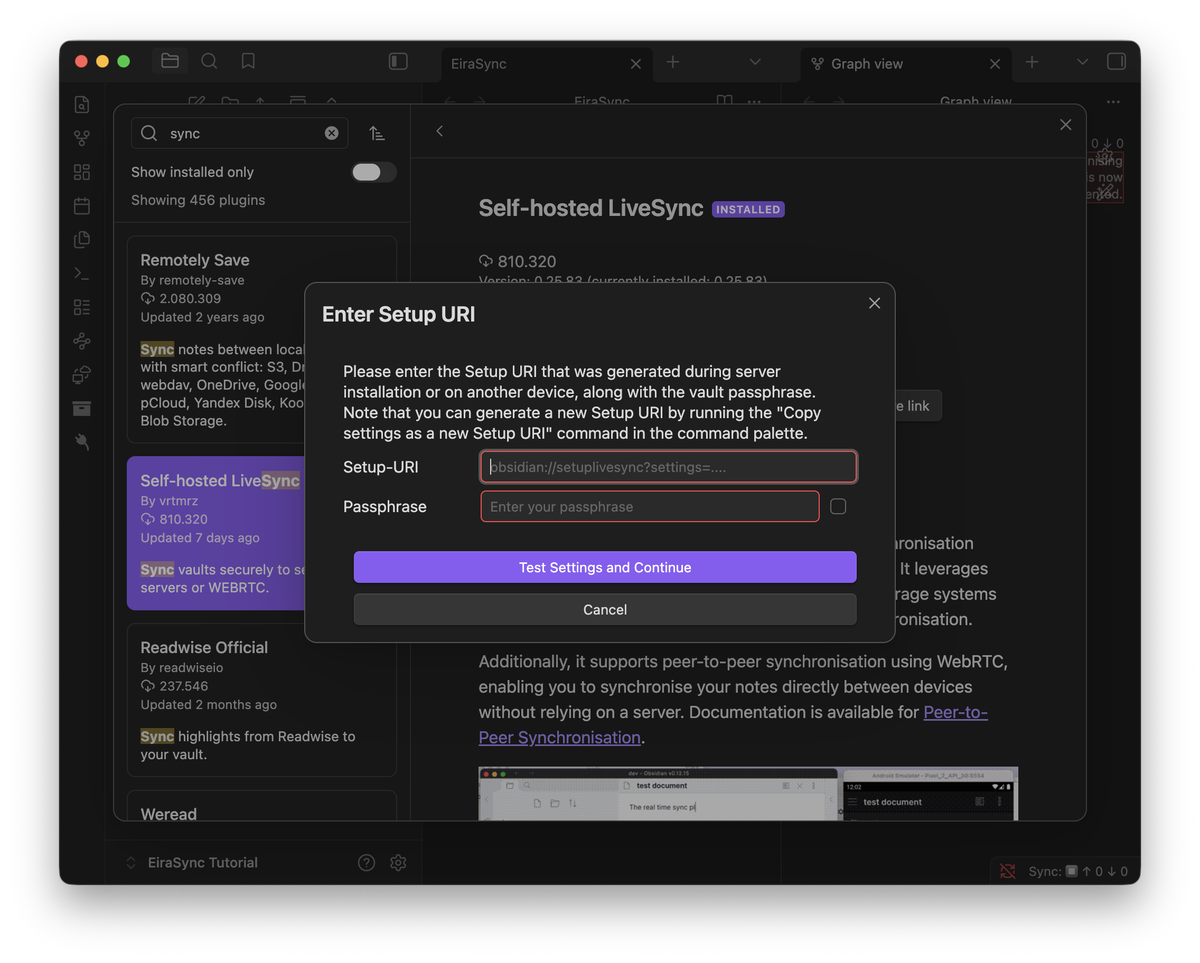
Sign in, open your vault, and click **"Generate new setup link"**.
Copy the setup link and URI passphrase — you will need both in Obsidian.
Save them now. **"Regenerate"** disconnects all devices.
## 2. Install the LiveSync plugin
Install [Self-hosted LiveSync](https://community.obsidian.md/plugins/obsidian-livesync) — the official Obsidian community plugin (by vrtmrz).
### Install & enable in Obsidian
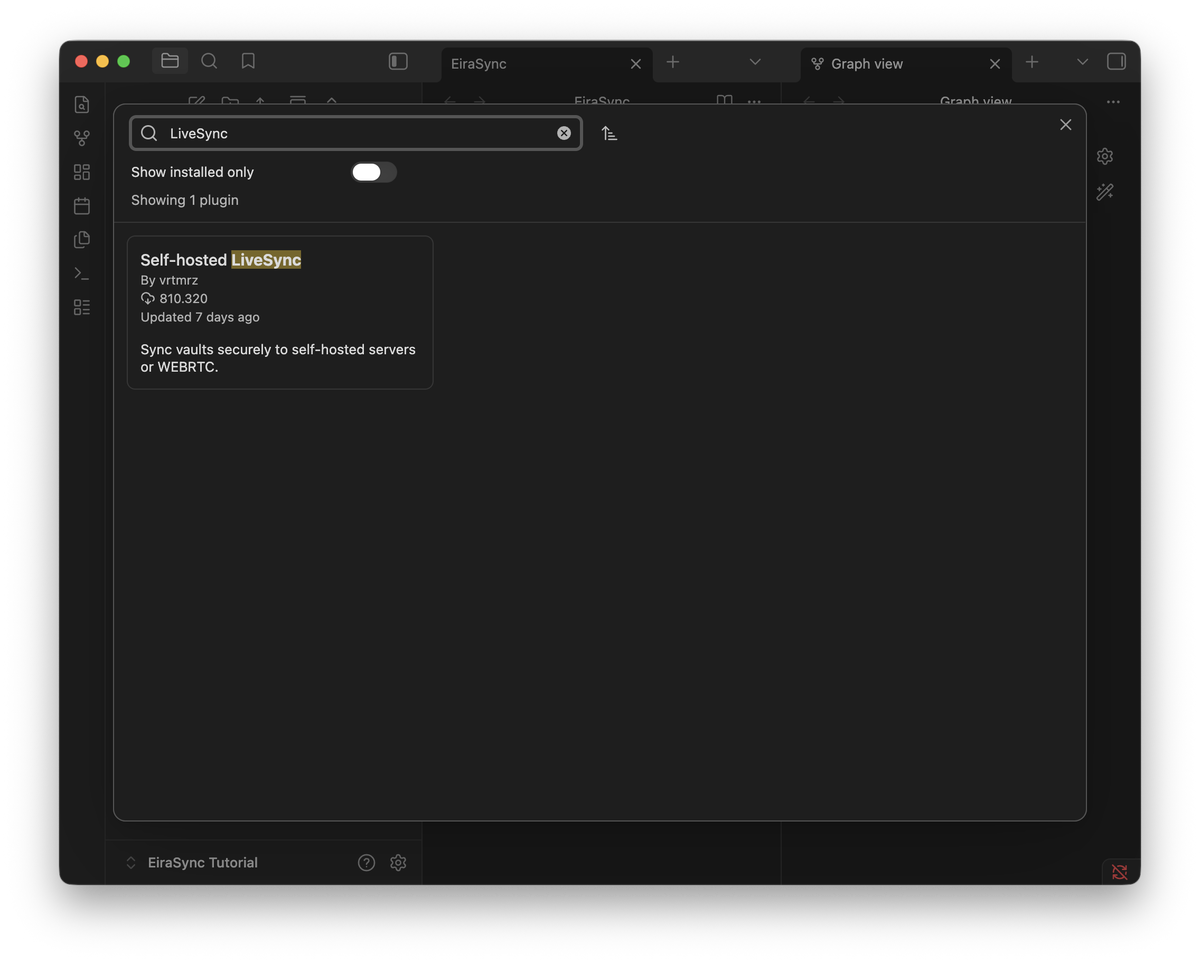
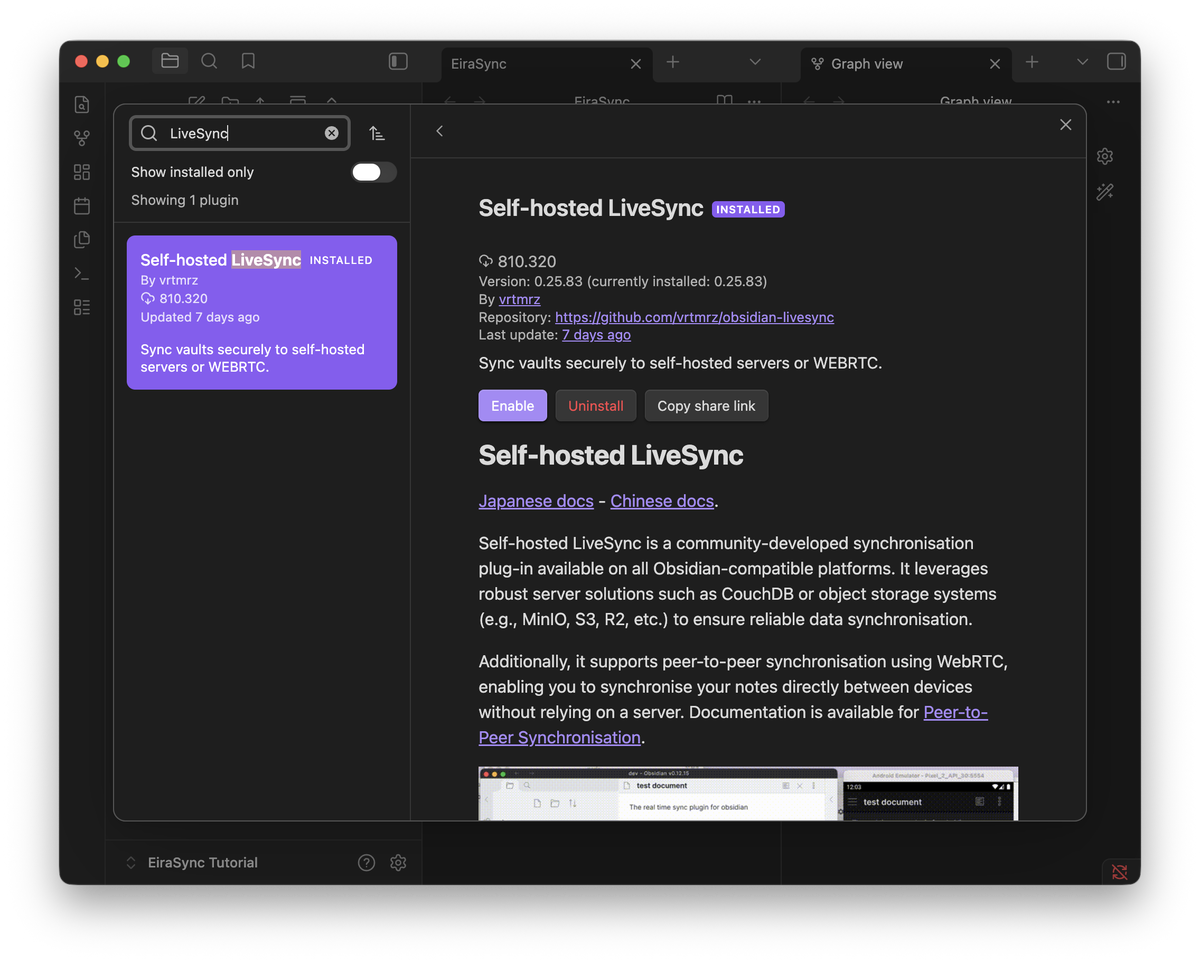
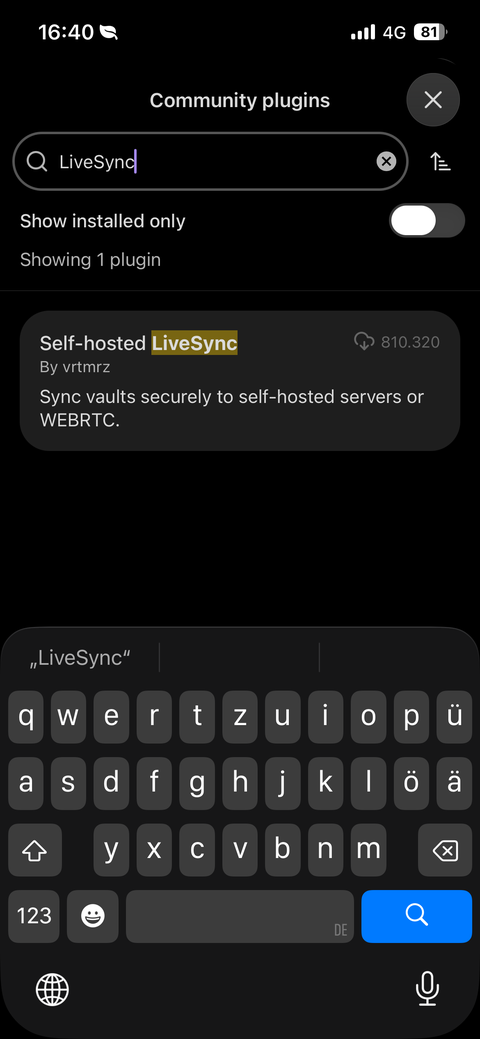
1. **Settings → Community plugins → Browse** → search "LiveSync".
2. Install **"Self-hosted LiveSync"** and click **"Enable"** — [plugin page](https://community.obsidian.md/plugins/obsidian-livesync). Same steps on your phone.
## 3. Set up your first device
### Follow the wizard
1. Choose **"I am setting this up for the first time"**.
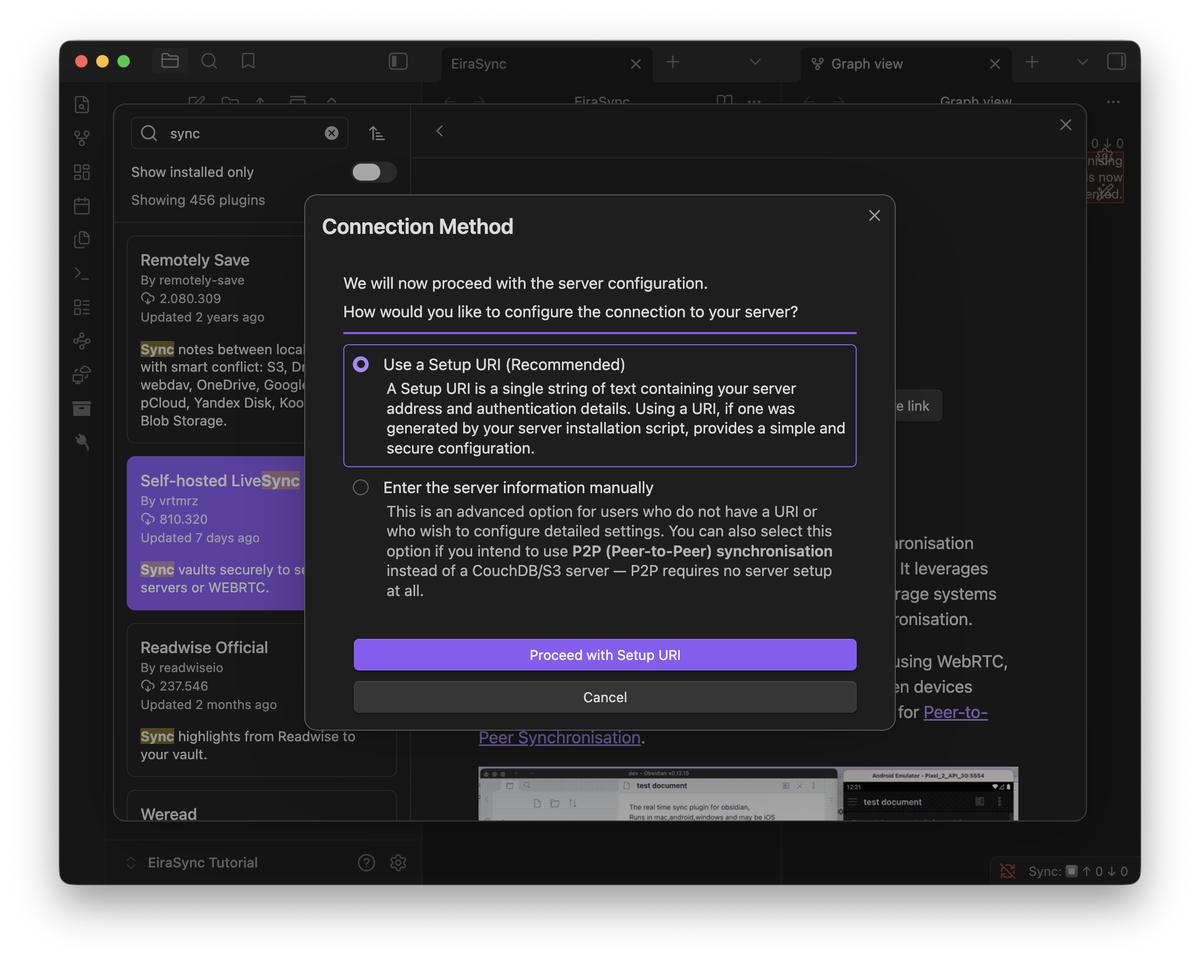
2. Keep **"Use a Setup URI"** as the connection method and continue.
### Paste link and passphrase
1. Paste setup link and URI passphrase from EiraSync → **"Test Settings and Continue"**.
2. When asked about uploading: **"Yes"** — your notes go to the cloud.
## 4. Add another device
Same setup link as device 1 — do not generate a new one in the dashboard.
### Second computer
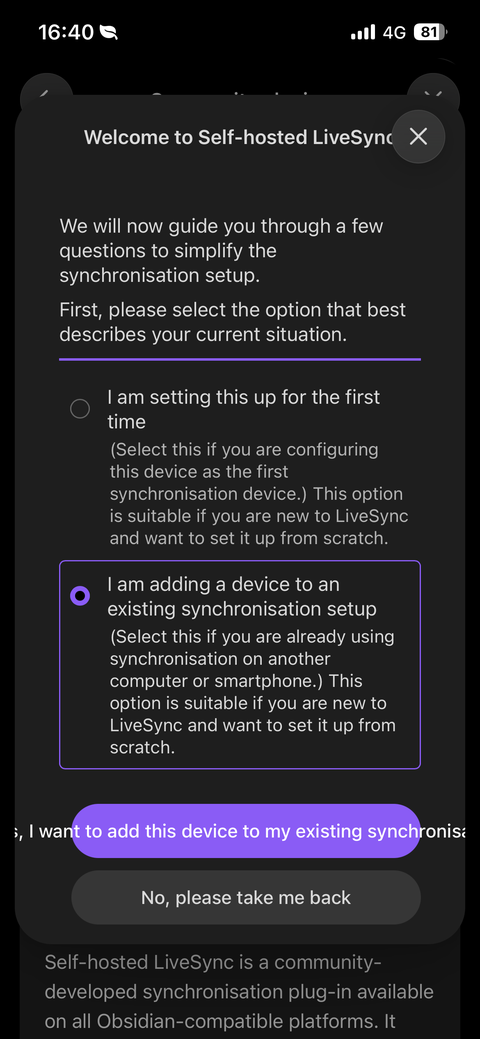
1. Install LiveSync, choose **"adding a device to an existing setup"** in the wizard.
2. Paste the same setup link and passphrase. When asked about uploading: **"No"**.
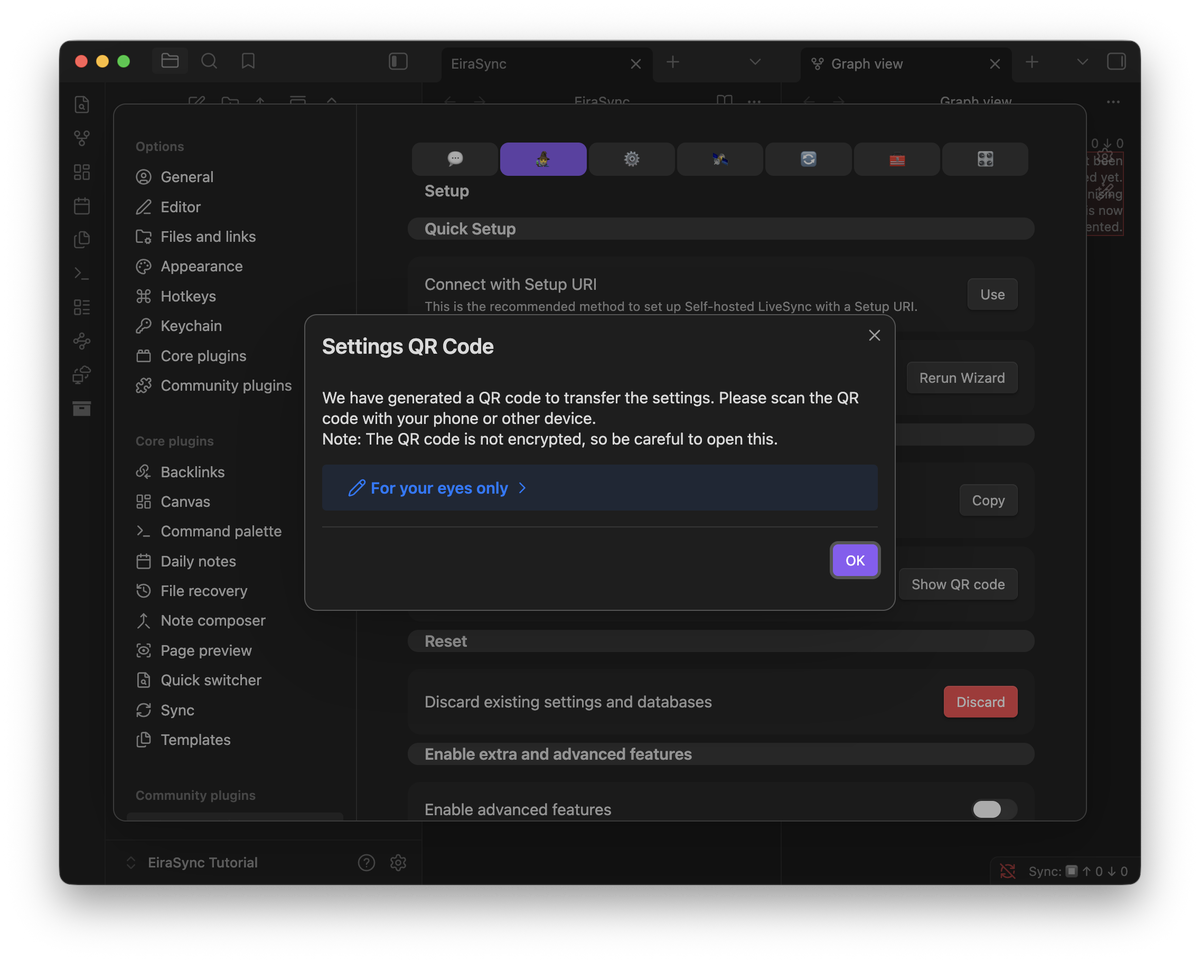
### Phone via QR code
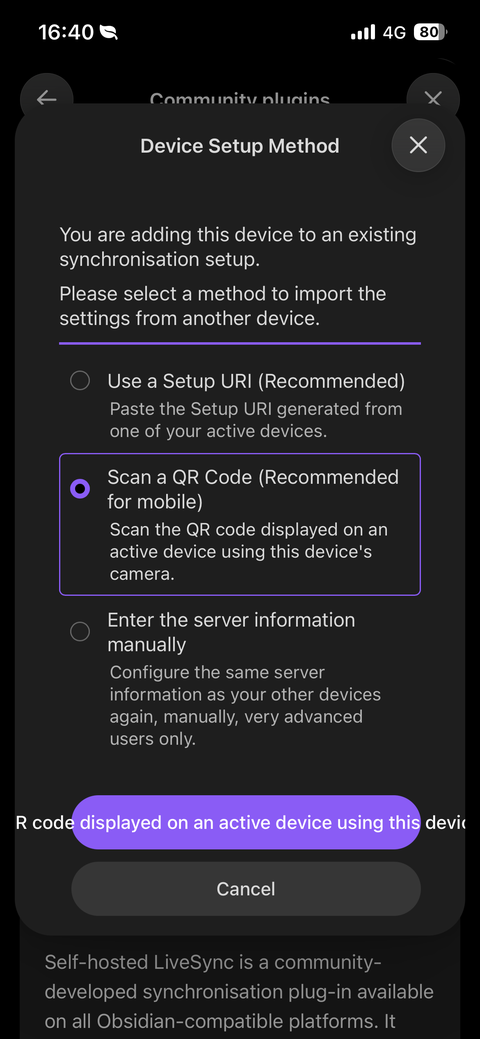
1. [Self-hosted LiveSync](https://community.obsidian.md/plugins/obsidian-livesync) install, choose **"adding a device to an existing setup"**, then **"Scan a QR Code"**.
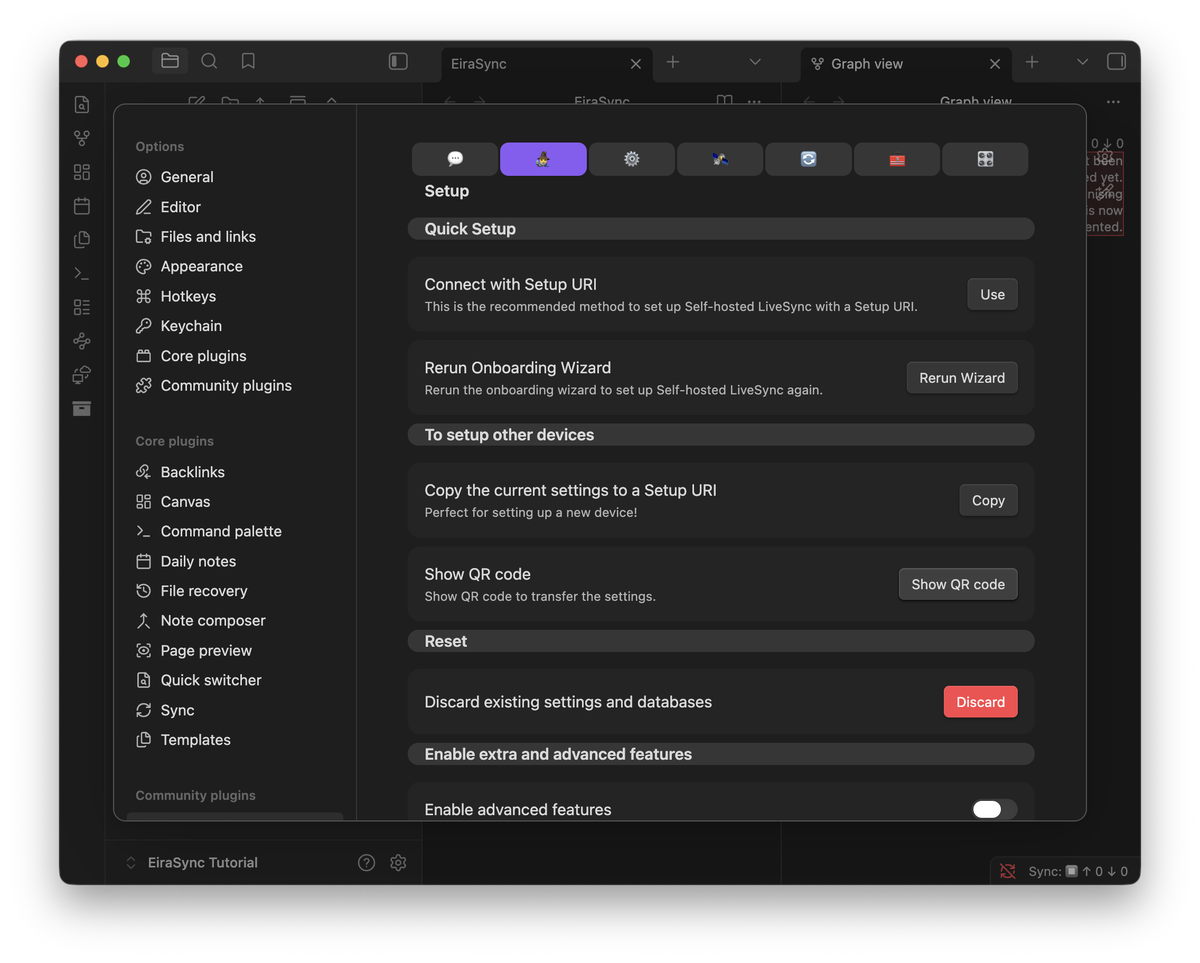
2. On your first device: **Settings → Self-hosted LiveSync → "Setup" tab → "Show QR code" → "For your eyes only"**.
3. Scan the QR code with your phone, enter the passphrase.
***
## Nice work — you did it!
Your notes now sync across your devices. Check the [dashboard](https://eirasync.app/dashboard) anytime to see your vault status.
## Good to know
### Zero-knowledge architecture
Your notes are encrypted on your device before they reach the server. EiraSync only stores encrypted data — we cannot read your notes, even if we wanted to. Only you hold the key.
### One link for all devices
Desktop and phone share the same setup link.
### "Not a server admin"
You can ignore this — normal for your private vault.